How to Make a Coloring Page From a Photo That Prints Clearly
Choose a photo, simplify its outlines and export a coloring page that prints clearly. See a real before-and-after example and fixes for busy photos.
A photo of a favorite pet or toy can make a coloring page feel personal. The easiest photos to work with have one clear subject, good light and a quiet background. Look for big shapes a child can fill with a crayon, such as a dog's ears, a toy truck's wheels or the petals of a flower.
1. Pick a photo with clear edges
On your phone, open two possible photos and glance at each as a small thumbnail. If you can name the subject right away, its outline will probably read well on paper. A pale blanket behind a dark toy is a useful starting point. A dark pet against a dark sofa may need a brighter photo.
Fur, grass, patterned fabric and shadows can all turn into lines. Move closer before taking the picture, or crop around the subject once you choose it. Leave some space around ears, wheels and other small features so the outlines stay complete.
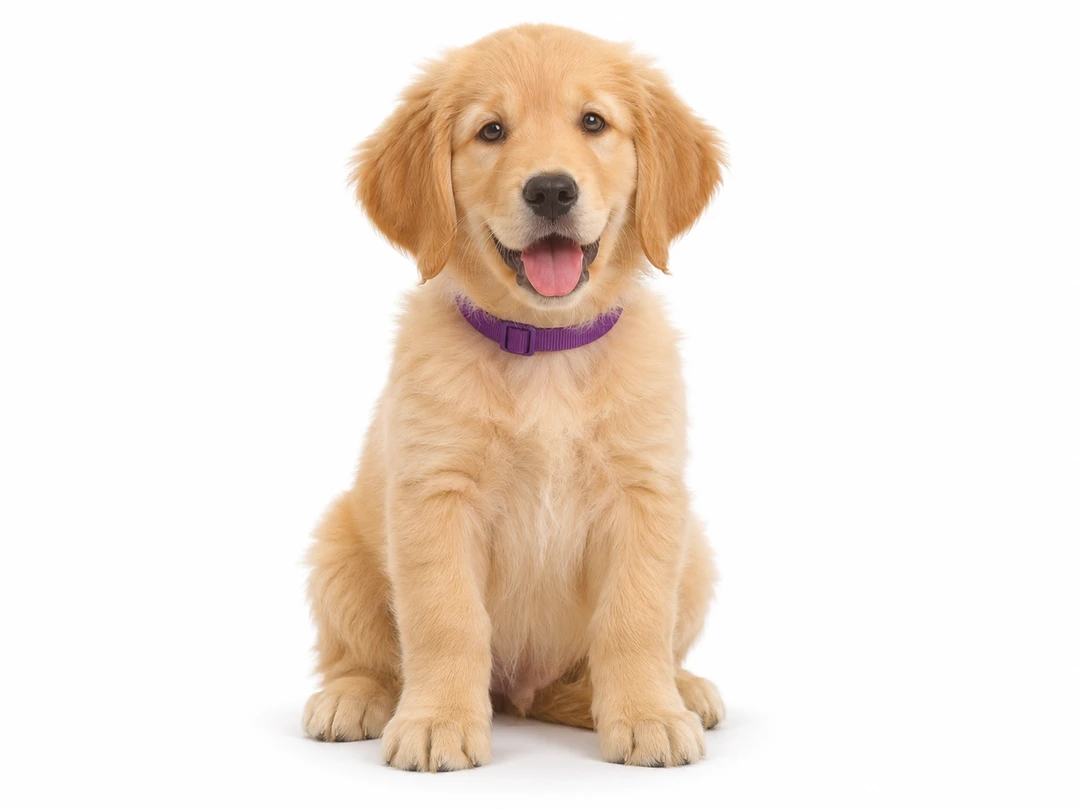
Original photo
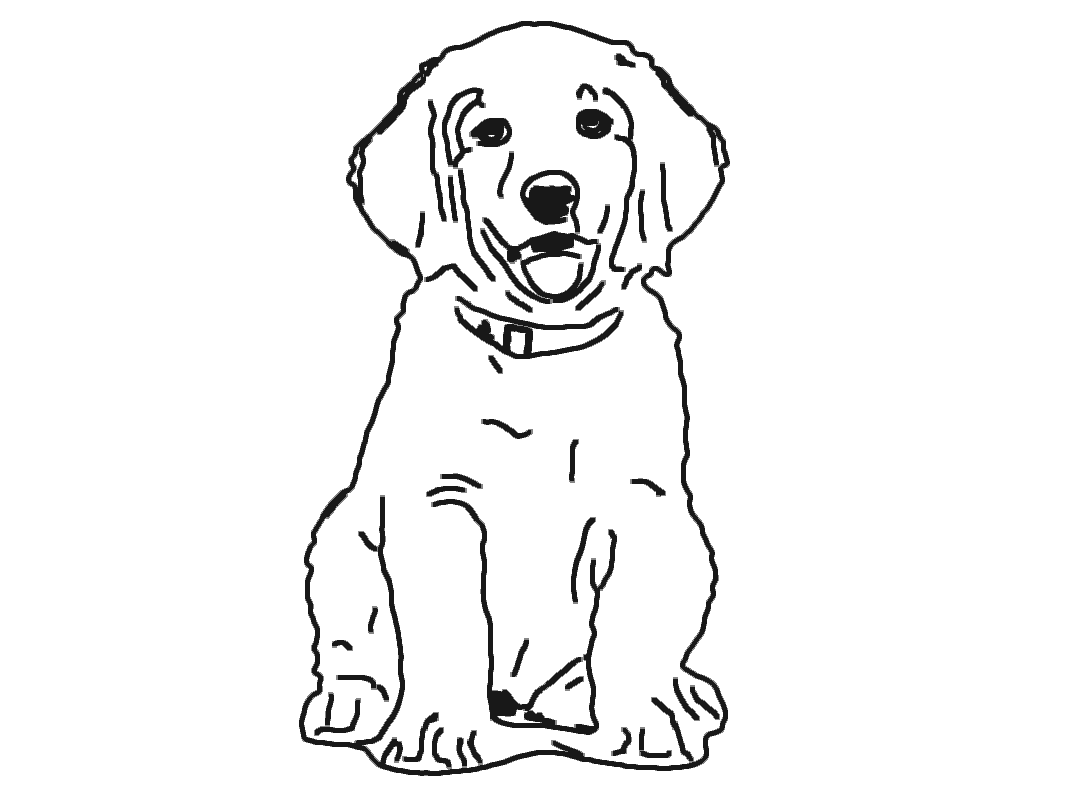
Converted coloring page
2. Match the detail to the child
Open the photo-to-coloring-page converter and select Choose a Photo, or try the puppy sample first. Start with Simple for Kids and adjust Line detail until the big shapes are clear. Crop in zooms toward the center, so choose a photo with the subject roughly centered to begin with.
- The background has too many lines
- Crop toward the subject or lower the line detail. If the background still takes over, choose a photo with more separation between the subject and its surroundings.
- The face or a small feature disappeared
- Increase the line detail a little, or try More Detail. A brighter, sharper source photo can help when the edges are too faint.
- The page is hard to color
- Zoom out to inspect the whole preview. A few broad areas give a child more room to use crayons than a page full of tiny patches.
3. Save a PDF and check one print
Choose US Letter or A4 to match the paper in your printer. Save the PDF, open print preview and check that the whole design is inside the printable area. Save the PNG if you want an image to put into a larger document. Our coloring-page printing guide covers paper size, scale and classroom copies.
PageJoy Kids processes the selected photo in your browser. For a first try, use a toy, a pet or another picture you have permission to use.